
If you’ve ever asked Claude to create a presentation only to receive something that looks like a school project from 2010, you’re not alone.
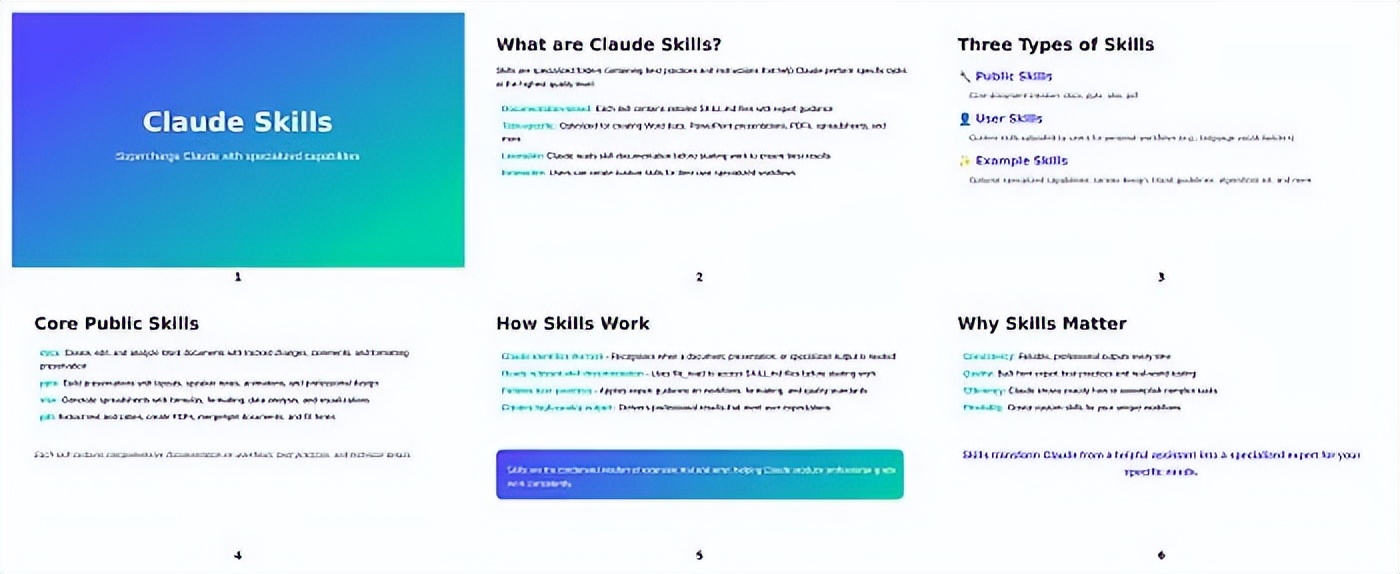
This is what happens when you don’t use skills.
Skills allow you to create reusable instructions for Claude to follow your standards—your brand colors, your formatting, your way of doing things (no more generic AI outputs).
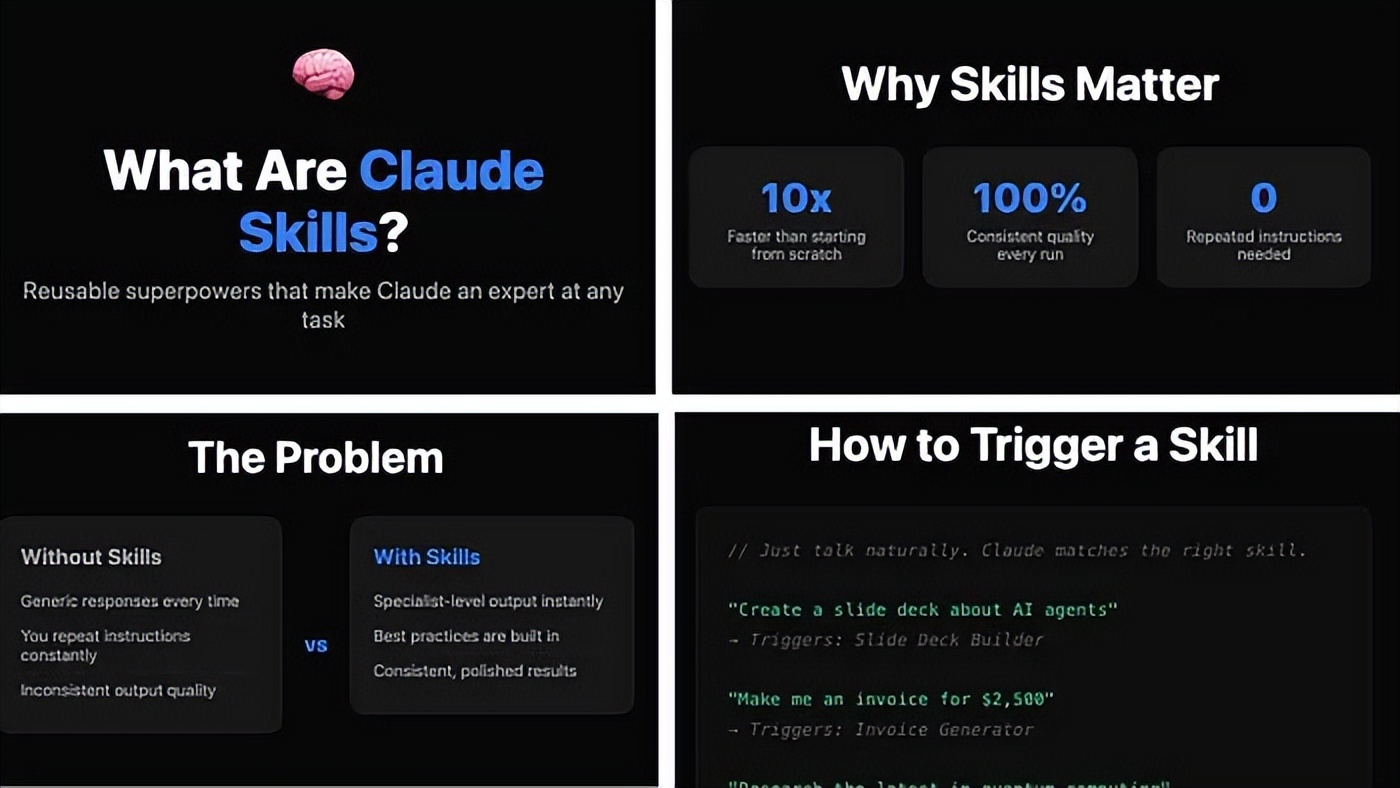
When I tried the same prompt but used a skill that follows Anthropic’s brand guidelines, it perfectly matched the colors, design, everything!
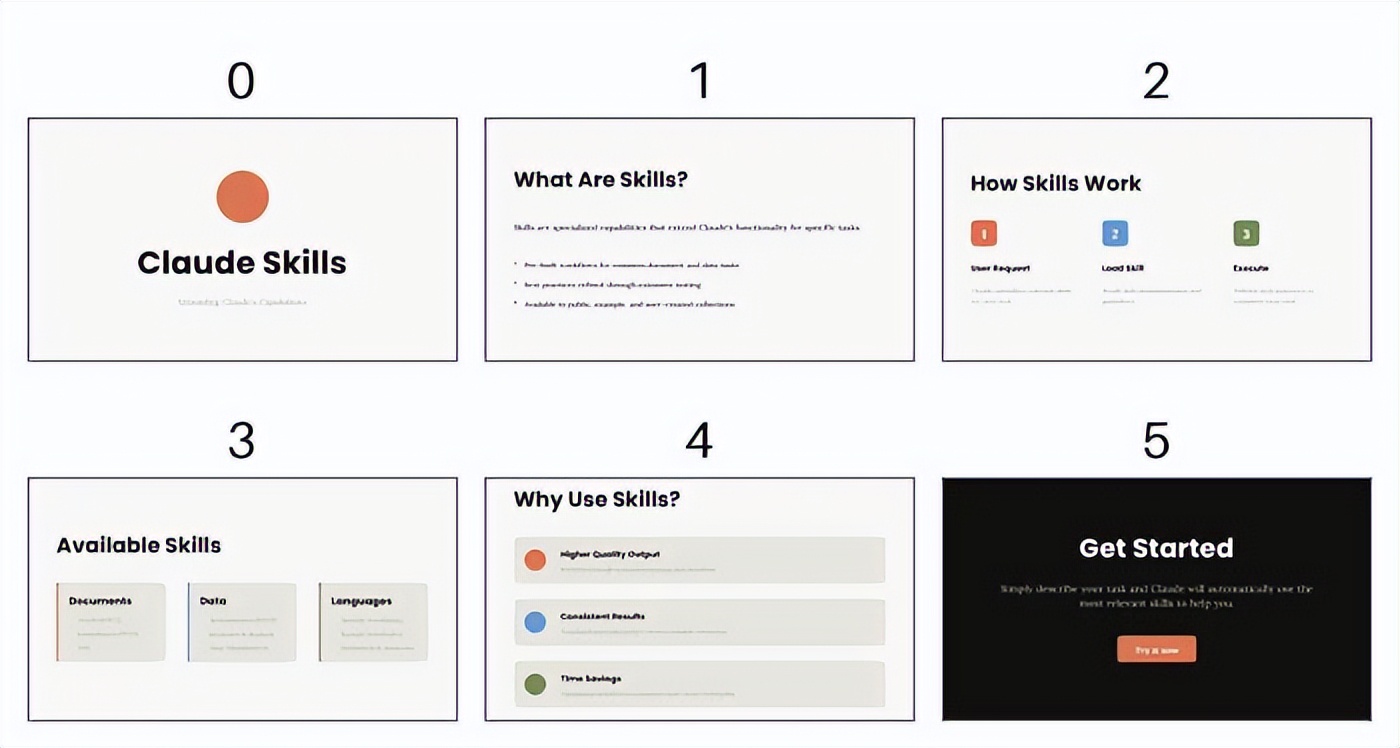
That’s the difference skills make.
With skills, you can create custom workflows that save you hours on repetitive tasks, generating content that adheres to company brand guidelines, chart styles, font choices, visual design principles, and more.
I searched the internet to find the best Claude skills (so you don’t have to). In this guide, we will cover:
- How to use Claude skills
- The top 11 Claude skills (for presentations, marketing, business, etc.)
- How to quickly install Claude skills
1. How to Use Claude Skills
To use skills, you first need to enable this feature.
Go to Settings → Capabilities → Enable Skills
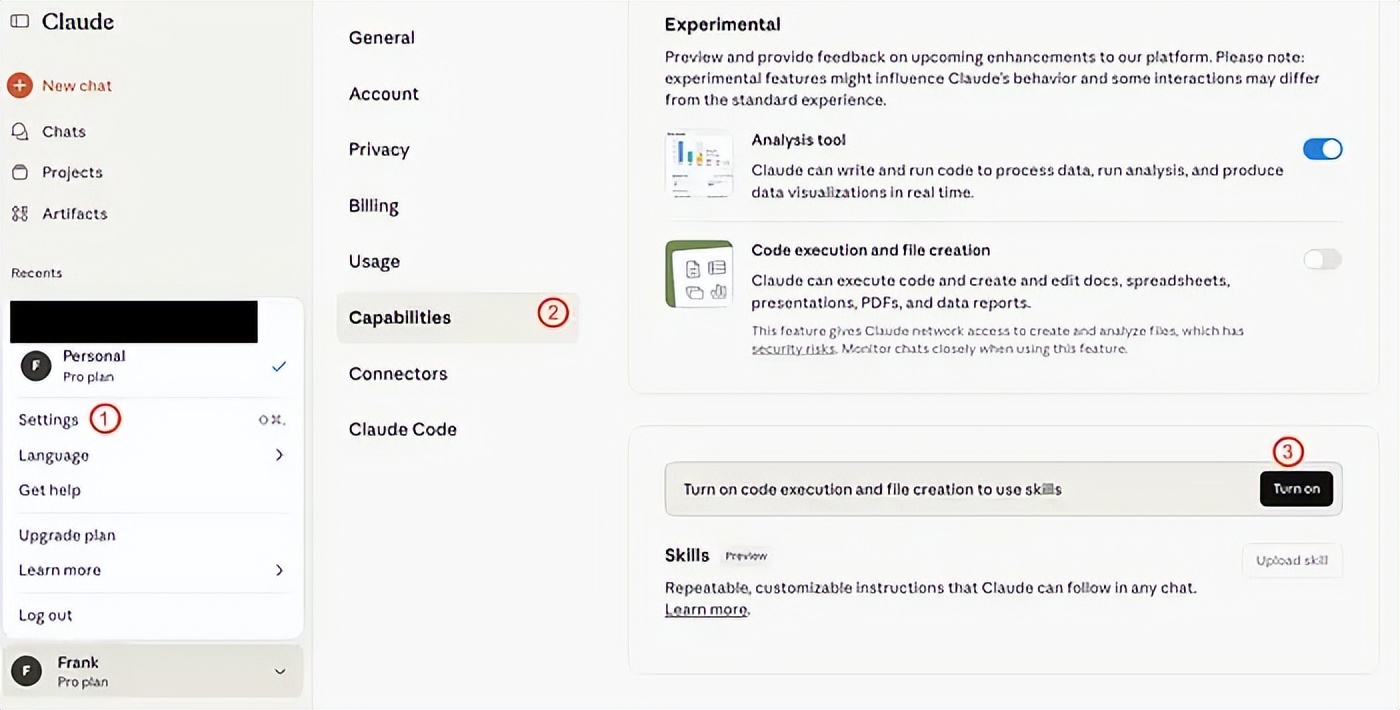
You don’t need a technical background to create skills. Claude has a built-in skill creator to help you build skills. Here’s how to enable the skill creator:
In the left sidebar, click “Preferences” - Click “Skills” - Select “skill-creator” - Turn on the skill-creator switch (keep it always on)
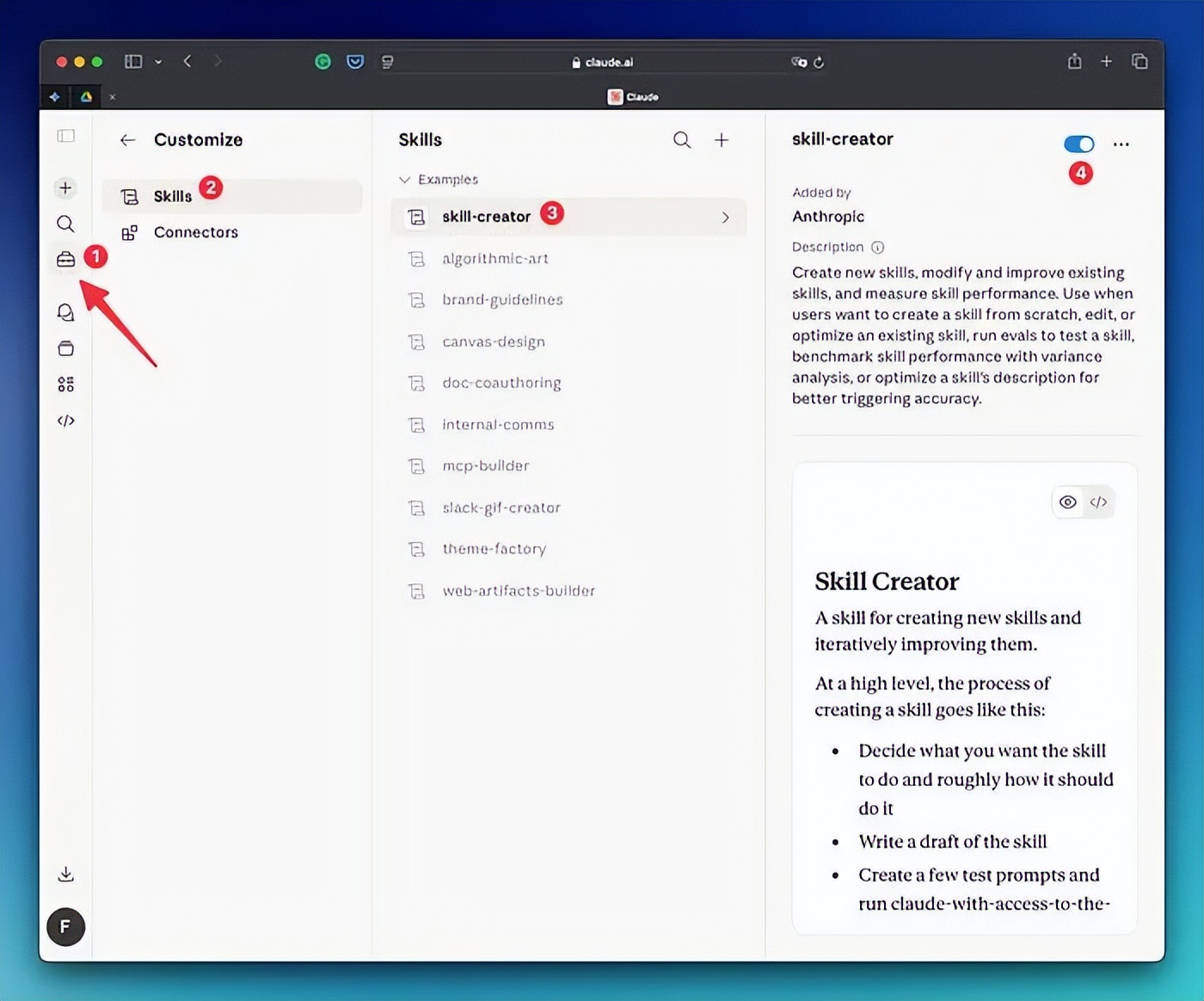
In the skills section, you will see skills created by Anthropic.
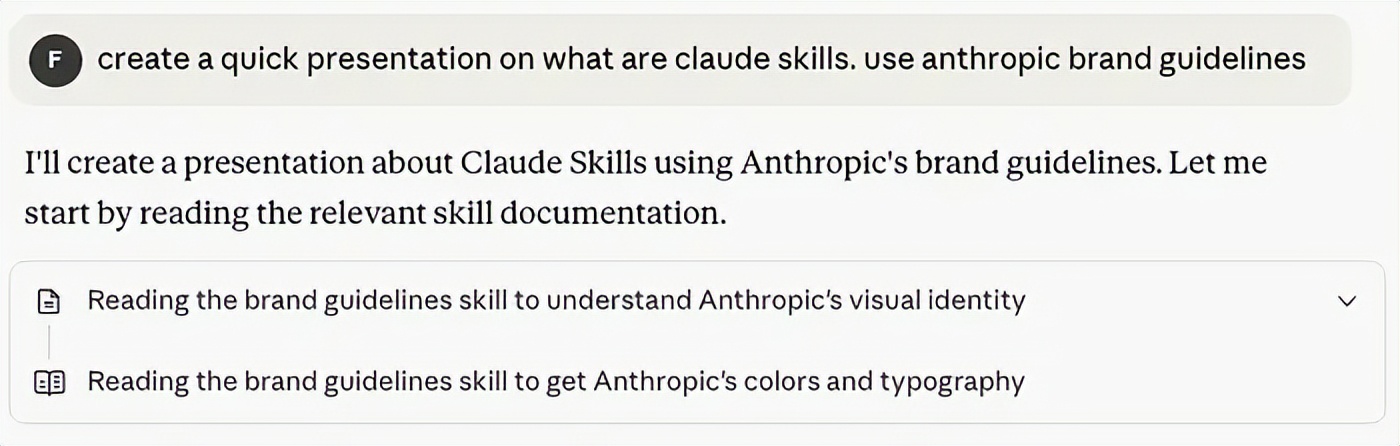
If you enable the brand guidelines skill and try the prompt below, you will get slides with Anthropic colors, designs, etc. (just like the example I showed earlier).
create a quick presentation on claude skills. use anthropic brand guidelines
There are two ways to use skills.
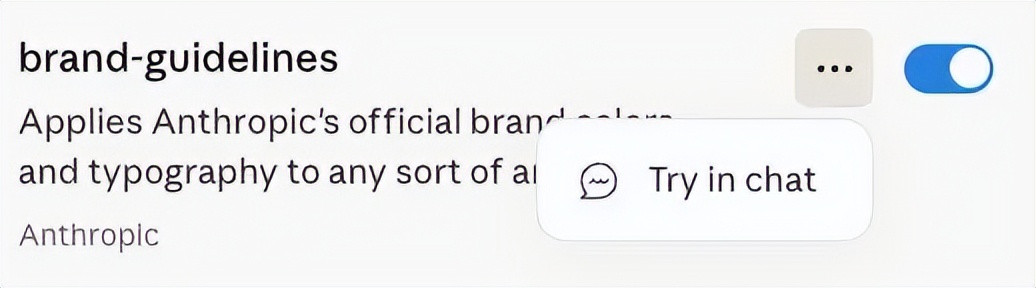
You can click the three dots and then click “Try in chat,” or let Claude decide which skill to use. In my experience, Claude is very good at matching your requests to the right skills—just make sure you know the capabilities of each installed skill so you can organize your prompts accordingly.
Check the first few lines of Claude’s response to see if it selected the right skill.
Pro Tip: You can turn any cowork chat into a reusable skill. Just click the dropdown arrow next to the chat name and select “Turn into skill.”
2. Best Claude Skills
There are many skills available. Here are the best ones I found:
Presentation and Visual Skills
2.1 Slide Deck Builder
Problem:
Creating presentations always takes much longer than it should.
It’s not the design that slows you down.
It’s everything before the design—deciding what to say, in what order, what content goes on separate pages, what needs more background. That’s how time gets consumed. You stare at a blank slide, and before you know it, an hour has passed.
Skill:
You give it a rough idea: a few sentences, a theme, any content you have on hand. It turns that into a complete slide sequence, well-structured, applying your visual style settings, delivering a real draft.
Why It Works:
It skips the two most time-consuming parts: clarifying the structure and making it look decent. You no longer start from scratch but improve something that’s already taking shape.
Link: Watch Tutorial | Download Skill
2.2 Explainer Graphic
Problem:
Some topics are hard to understand just by reading.
You read the entire explanation, get to the end, and somehow… remember nothing. So you read it again. And again.
Skill:
You give it a concept—anything that’s hard to explain with words. It turns that into an HTML explainer graphic with simple analogies, visual steps, and easy-to-understand short paragraphs.
Why It Works:
Switching formats—from a large block of text to a visual presentation—can sometimes be enough. The same concept, completely different experience.
Link: Watch Tutorial | Download Skill
Skills for Marketers and Business Owners
2.3 Branded Carousel Generator
Problem:
Turning your ideas into social media content is one thing. Making them truly align with your brand style is another.
Most people end up stuck between two bad choices: reusing a generic template that feels off or spending too long tweaking each post to try to make it look consistent.
Skill:
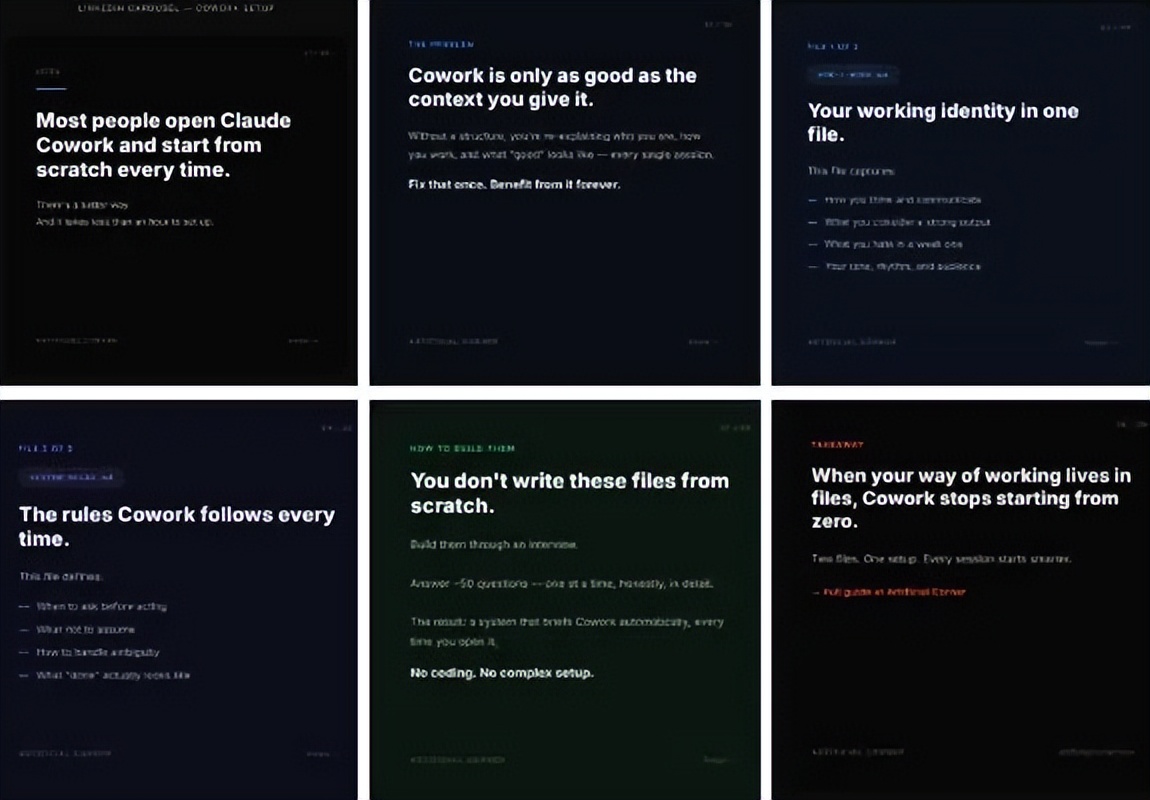
This skill turns your content into branded carousel posts.
Not a generic post split into slides. But a carousel shaped around your material, styled in a way that makes you genuinely want to publish it—and can be reused next week without starting over.
Link: Download Skill | Download Skill
2.4 Brand Applicator
Problem:
You’ve completed a document that is technically finished.
The text is there. The structure is fine. But it still feels off. The branding—wrong font. Colors don’t match. No logo. Even if it’s not a draft, it looks like one.
Skill:
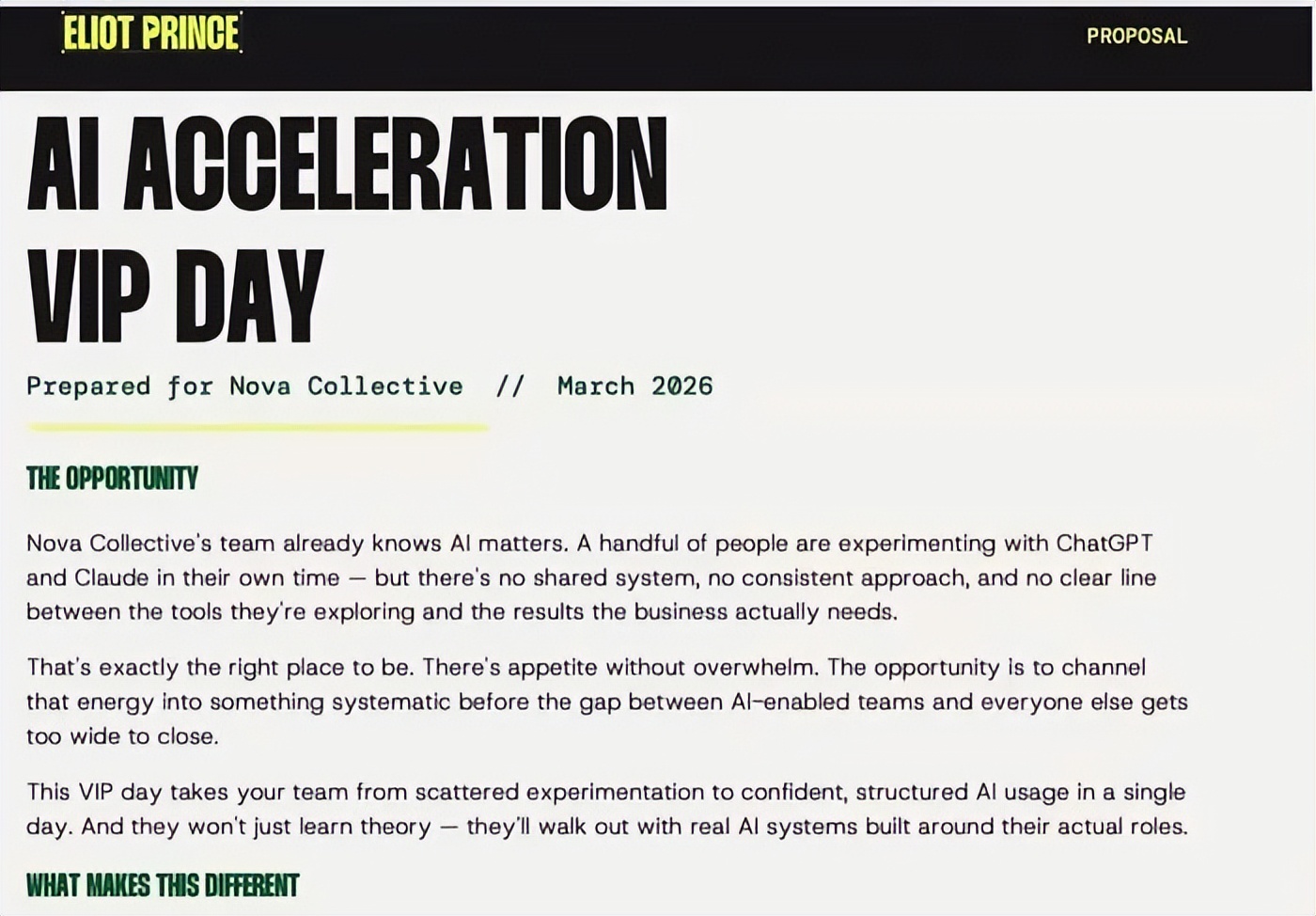
You provide it with brand rules (fonts, colors, logos), and it automatically applies them to your document.
The output matches your other business assets. It doesn’t look like something hastily thrown together before a deadline.
Why It Works:
Most people leave this part for last. Then they rush through it, skip it, or send something that looks less polished than the content itself.
This skill helps you handle the final step. No thinking. No writing. Just making things feel like a real deliverable instead of a work draft.
Link: Watch Tutorial | Read Guide | Download Skill
2.5 Market Competitors
Problem:
Competitor research often ends the same way.
You look at a few pages, notice some patterns, jot down a few things here and there—then move on without turning it into something truly usable.
Research is done. Useful results are not.
Skill:
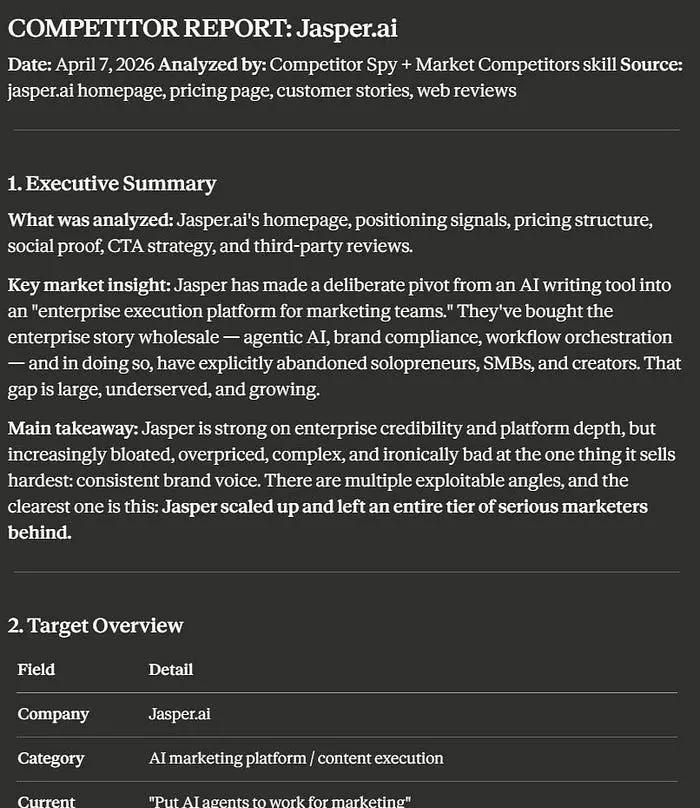
Market-competitors takes a website or market input and turns it into a competitive intelligence report.
Not scattered notes. But a structured deliverable—something you can genuinely refer to when making positioning decisions.
Why It Works:
Competitive analysis is only useful when it leads to a result.
Most of the time it doesn’t because the research never gets a format. It stays in browser tabs, documents, or your mind until something more urgent takes its place.
This skill gives it a format. And that’s the key to turning observations into actionable content.
Link: Watch Tutorial | Download Skill
Business Operations Skills
2.6 Workflow Visualizer
Skill:
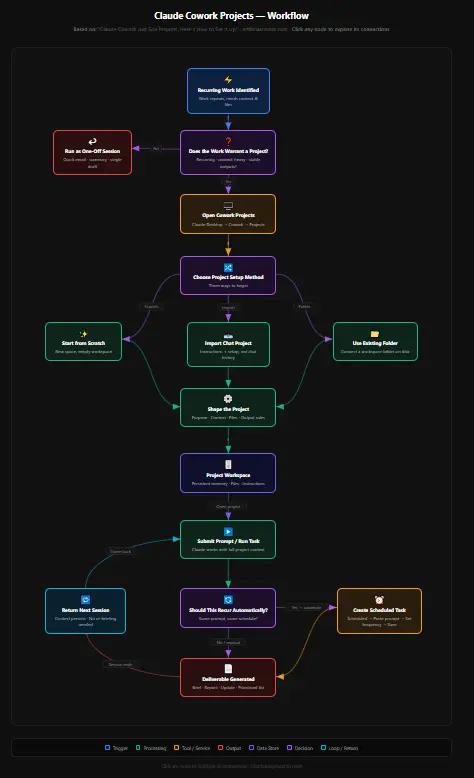
Workflow Visualizer turns a process, business system, or operational setup into an interactive visual map.
Stages, triggers, components, connected tools—all in one place, showing how they work together rather than just listing what they are.
Why It Works:
A list of steps tells you what exists. A map tells you how it operates.
This distinction is crucial when you need to explain a system to others, figure out where things went wrong, or determine what to improve without accidentally touching the wrong things.
Link: Watch Tutorial | Download Skill
2.7 Contract Reviewer
Problem:
It’s easy to skim through a contract. Reading it thoroughly is another matter.
The hard part isn’t the length—it’s knowing what to focus on. It sounds fine until you hit problematic clauses. Protections that should exist but don’t. Clauses that are standard but actually aren’t.
Skill:
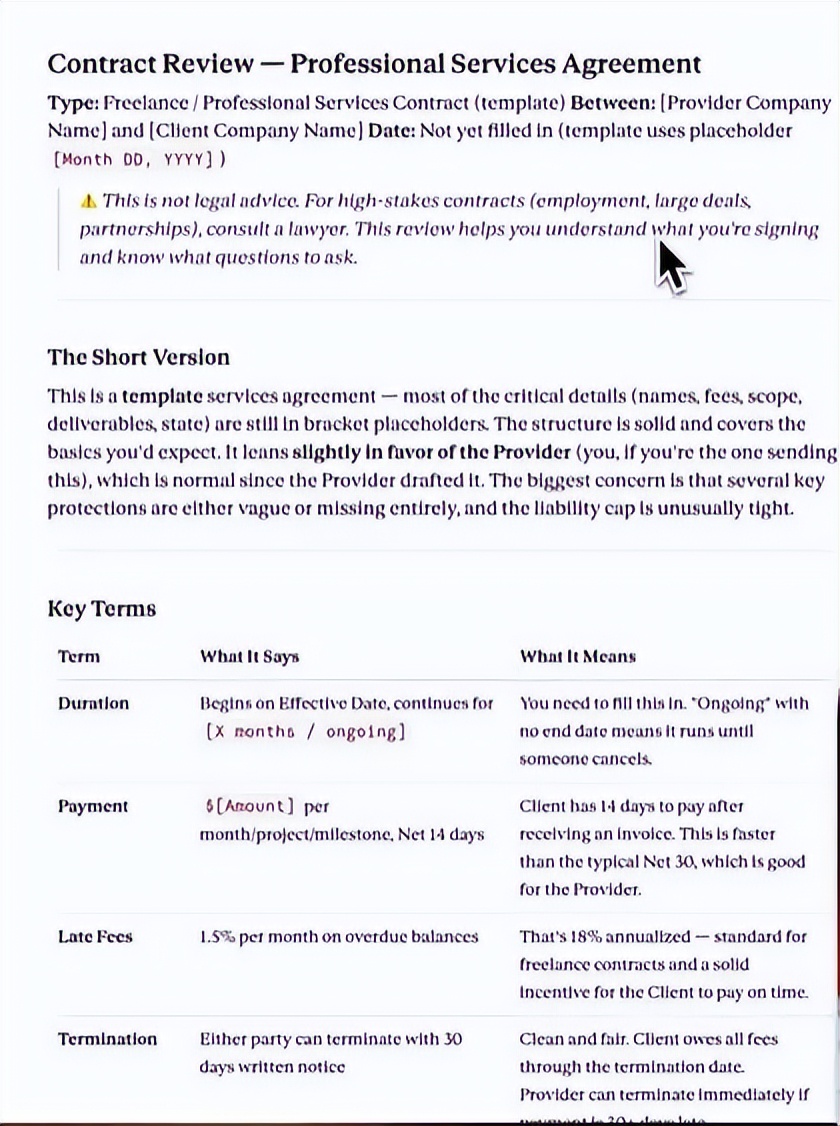
You upload a contract, and it breaks it down into the truly important content.
Key clauses, red flags, yellow flags, missing protections, and things you might want to challenge before signing.
Why It Works:
It can’t replace a lawyer. But for most people, it does something more useful. It tells you where to focus first.
Just this point changes how you handle documents—no longer reading every line with equal concern but knowing exactly where to slow down (and where you can relax).
Link: Watch Tutorial | Download Skill
2.8 Decision Council
Problem:
Some decisions are too important to look at from just one angle.
The real risk isn’t always making the wrong decision. Sometimes it’s making a hasty decision—without enough dissenting opinions, no one asking that uncomfortable question, and no real collision of perspectives.
Skill:
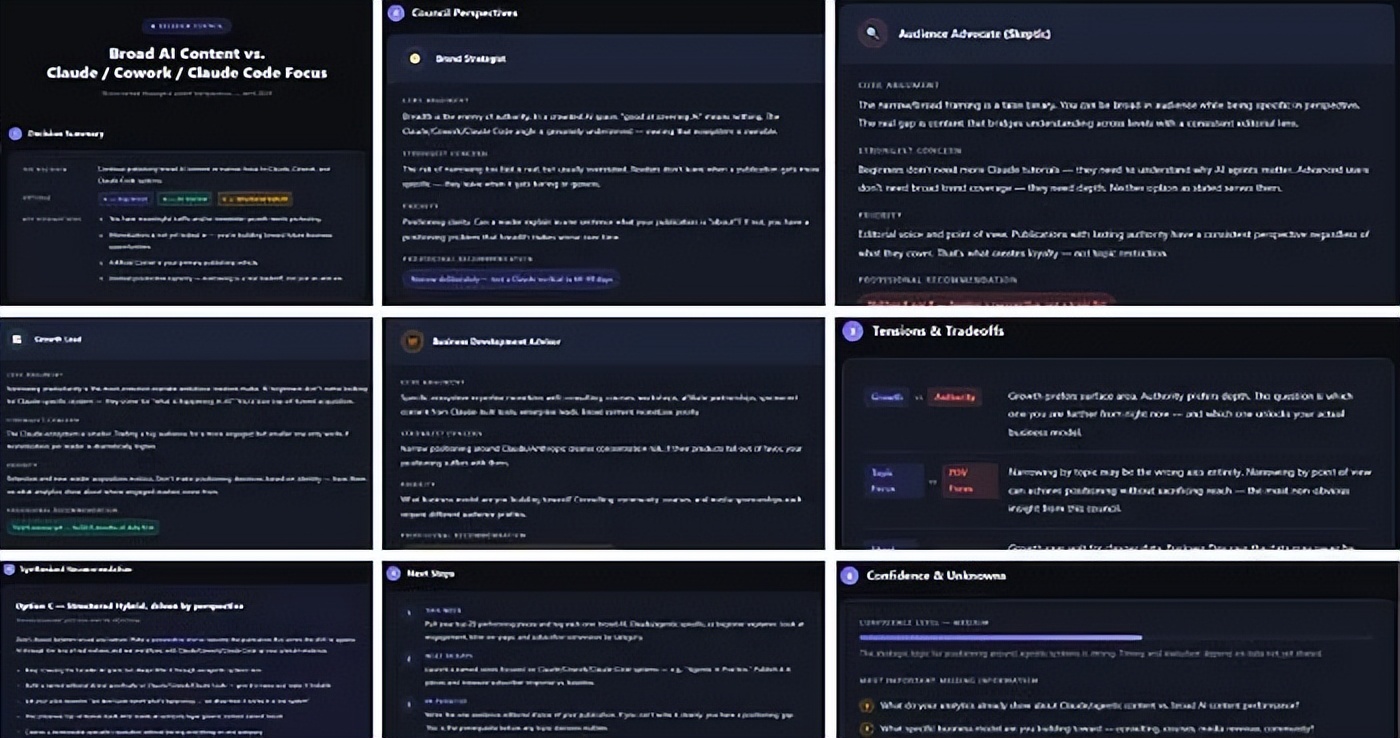
Decision Council runs multiple expert roles simultaneously, each examining your decision from different angles. It then integrates them into a comprehensive recommendation with clear next steps.
You first get a structured collision of viewpoints, then the answer.
Link: Read Guide
2.9 Quick Research
Problem:
Research can quickly become a mess.
You start with one question. That leads to another source, then different viewpoints, and then three pages of background information you’re not even sure you need.
By the time you finish, you have a lot of tabs open but no clear picture.
Skill:
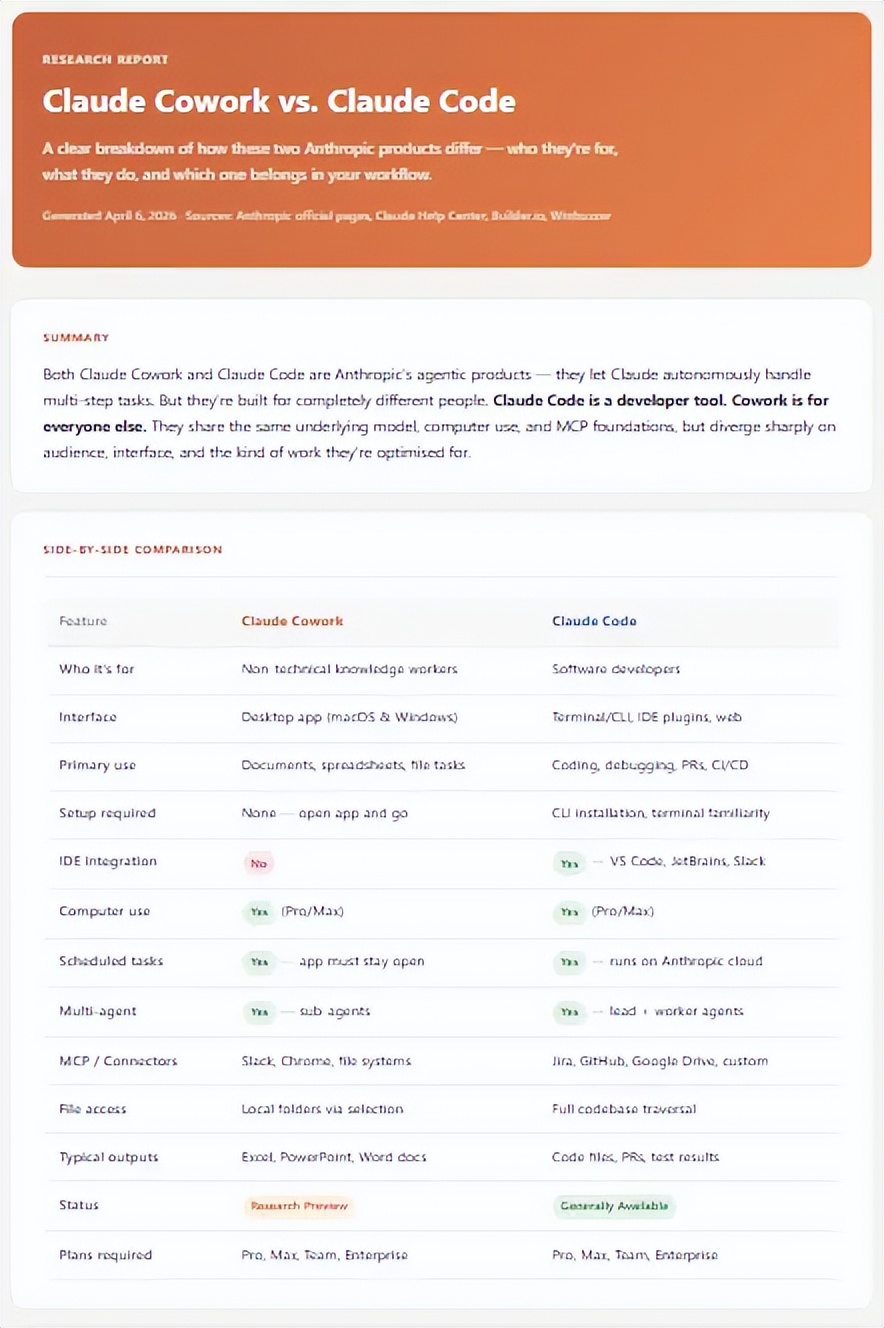
You give it a topic, and it compresses all the content into a structured brief.
I used it to break down a new Claude Cowork version release. Summary, features, requirements, pros, cons, pricing, and actual conclusions—all in one place, already organized.
Link: Watch Tutorial | Download Skill
No-Code Building Skills
2.10 Frontend Design
Problem:
Many AI-generated interfaces technically work.
But they look like no one cared.
The code runs fine, but the result feels like it was thrown together in five seconds and never looked at again. Generic layouts, default fonts, nothing that feels thoughtfully chosen.
Skill:
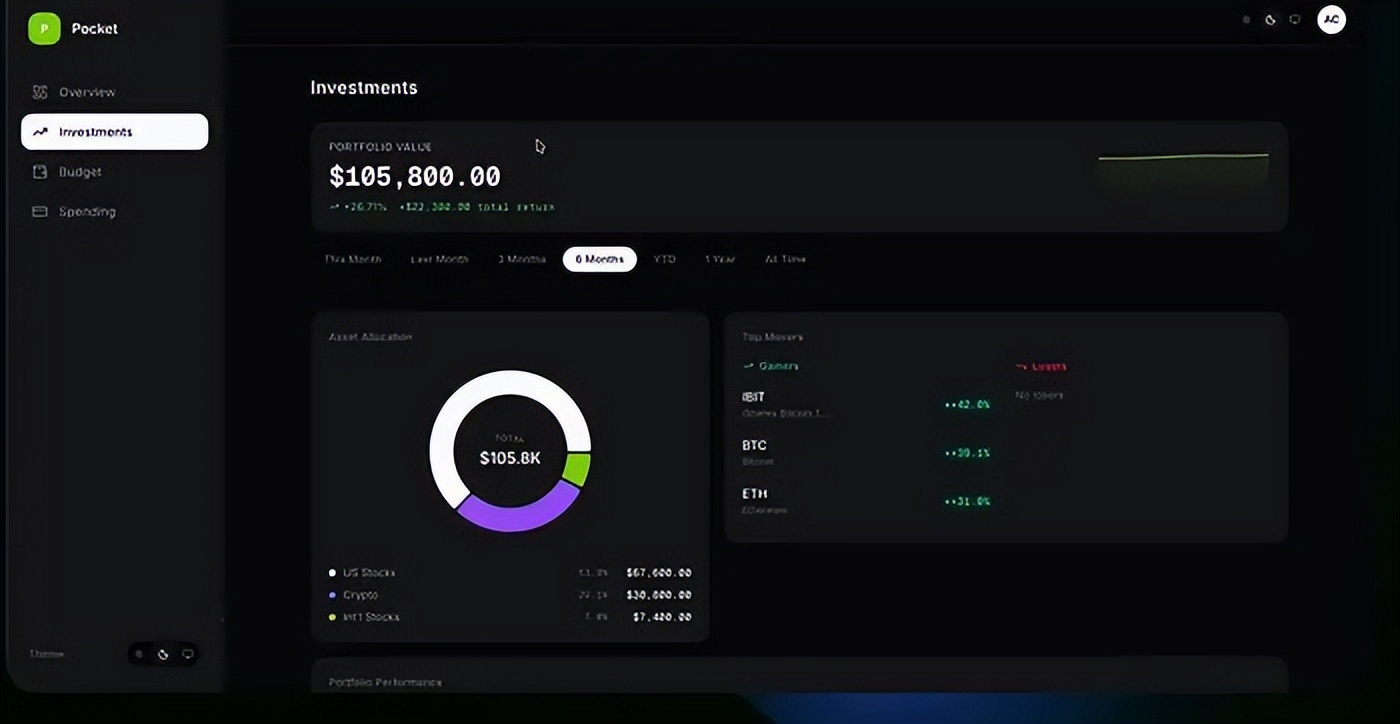
Frontend Design is an official Claude Code skill that drives output towards being closer to production-ready.
Better typography. Stronger visual decisions. A UI that looks like someone made choices—rather than just accepting the initial output.
Link: Watch Tutorial | Download Skill
2.11 Implement Design
Problem:
Moving from Figma to code sounds simple until you actually try it.
That’s when those small mismatches start to appear. Spacing is slightly off. Components deviate from the original design. The final result looks close—but anyone involved in the design can tell it’s not right.
Skill:
Implement Design is a public Figma skill for turning designs into production-ready code with higher visual fidelity.
This skill gives Claude a more organized way to move from design to implementation—minimizing the gap between design and build as much as possible.
Link: Watch Tutorial | Download Skill
3. How to Install Skills
When you want to add a skill to Claude (.zip or skill.md file), follow these steps:
Customize → Skills → “+” → Create Skill → Upload Skill → Upload your .zip or skill.md file
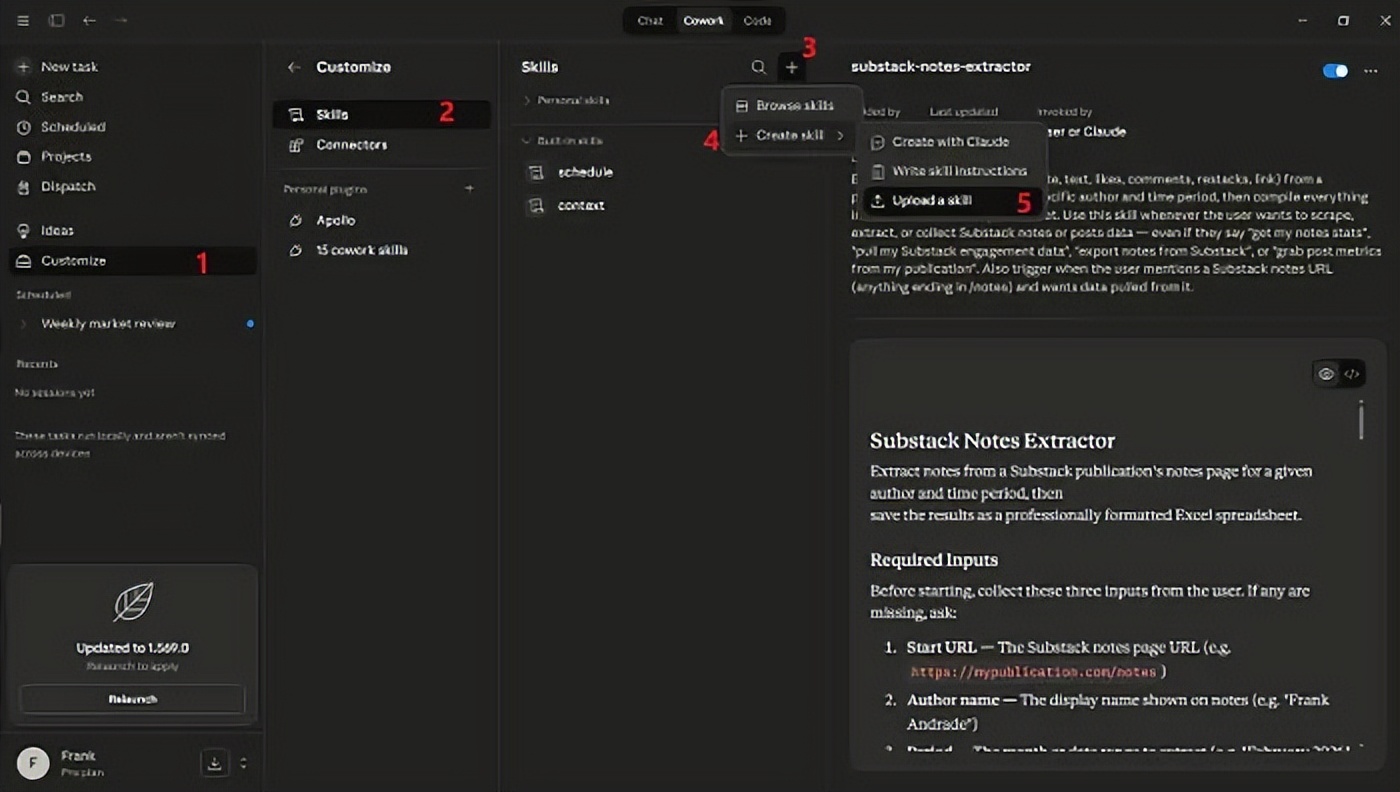
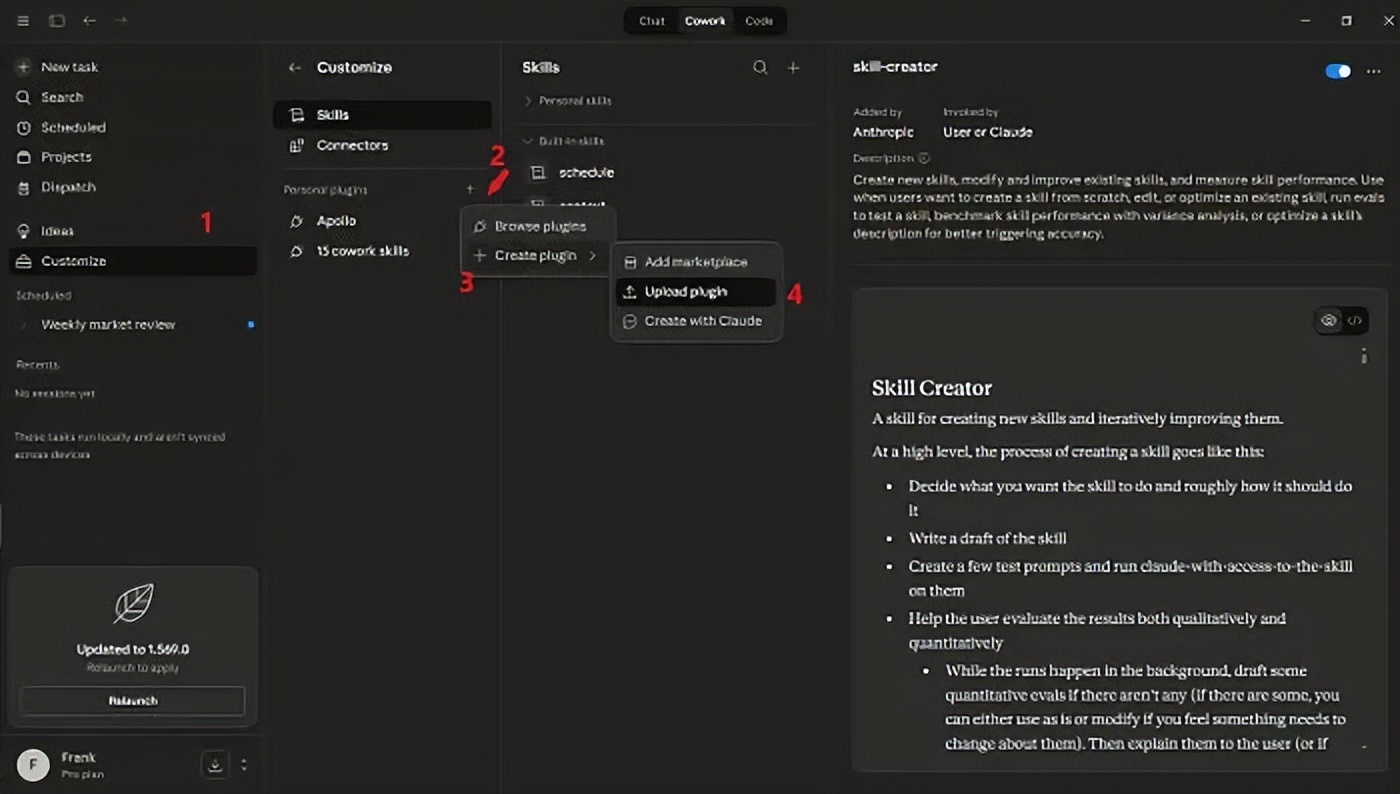
If the .zip file contains multiple skills (like some files shared in this guide), you need to add the .zip to the plugins:
Customize → Personal Plugins → “+” → Create Plugin → Upload Plugin → Upload your file
4. Conclusion
Now you have 11 skills that can save you hours each week.
But skills work best when you become proficient with Claude—prompting, workflows, and settings that keep everything running smoothly.
That’s what my newsletter subscribers get.
Comments
Discussion is powered by Giscus (GitHub Discussions). Add
repo,repoID,category, andcategoryIDunder[params.comments.giscus]inhugo.tomlusing the values from the Giscus setup tool.